
School Sharing Settings
District Admins can control how schools share content and which permissions are available to Students and User Plus accounts.
Managing School Settings
- Go to Administrator Tools > Manage Schools.
- Open the More menu next to a school and click Edit School.
- Under School Advanced Settings, adjust options including:
- Default Uploads to Private
- Allow Students/User Plus to Share Folders
- Allow Students to Upload via OneDrive/Google Drive
- Allow Student/User Plus Internal Share Link
- Allow Student/User Plus to Search Media
- Allow Student/User Plus Media Sharing
- Allow Students/User Plus MediaSpot Sharing
- Allow User Plus to Create Insights
- Show All Users Page for Student/User Plus
- YouTube is Not Blocked by Content Filter
Cross-School Sharing
By default, schools can only access content from within their own building. To allow content sharing across schools:
- Go to Administrator Tools > Manage Schools.
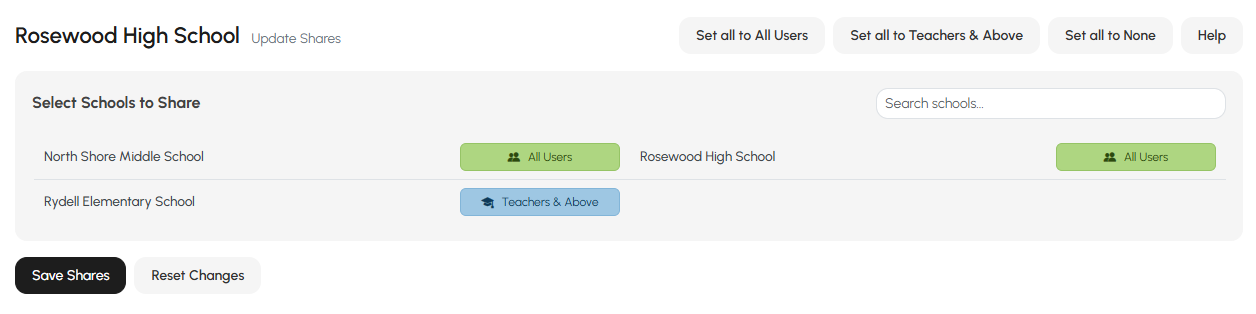
- Open the More menu next to a school and click Edit School Shares.
- Set sharing for each school using either:
- The buttons at the top — Set all to All Users, Set all to Teachers & Above, or Set all to None — to apply one setting across every school
- Or the button next to each individual school to set that school's sharing to None, Teachers & Above, or All Users
Warning
Cross-school sharing is one-way. You’ll need to update each school’s shares individually if you want mutual access.
Cross-school sharing affects:
- Search All Content – Users will be able to find shared media across selected schools
- Shared Insights – Insights shared internally will become discoverable by selected schools
- Search for Badges – Badge associations and tracking can reflect shared visibility
Want all schools in your district to share media automatically? Email support@myvideospot.com to enable full district-wide sharing.