
Google Provisioning
Set Up the Connection
Syncing accounts from Google is a two-step process. Step one grants our application access in the Google Developer Console. Step two creates a token that allows us to fetch user data from Google and requires authorization from a Google Admin’s account.
You must be a Google Administrator and you must use your Google Administrator account to perform the steps below.
Step 1
Before you can sync your Google domain with MyVideoSpot, you will need to allow API permissions. First, login to the Google Admin console: https://admin.google.com.
After login, follow these steps:
- Click Security and select API controls under Access and Data Control from the left menu.
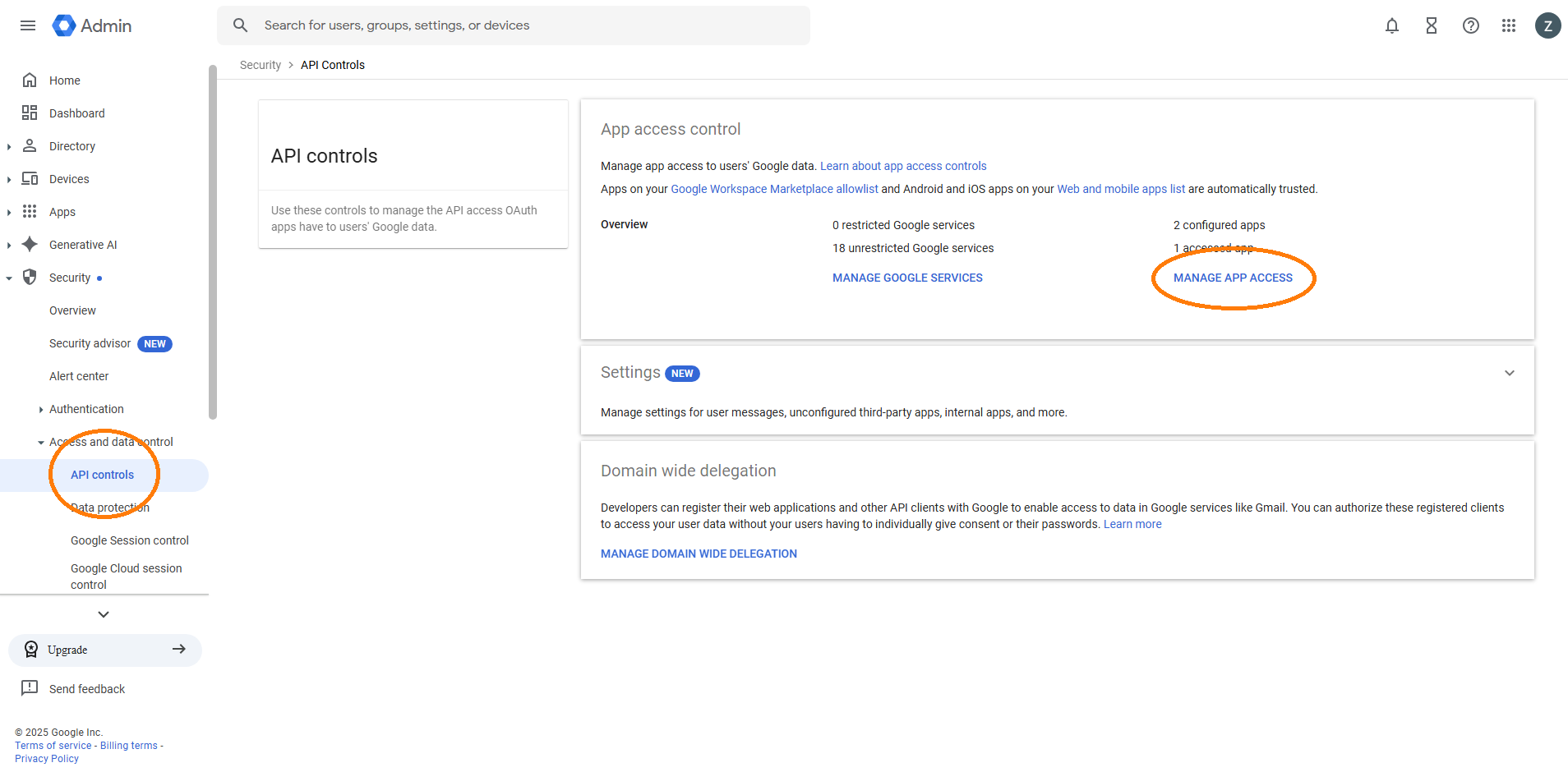
- Click the MANAGE APP ACCESS link.
- Click the Configure new app option.
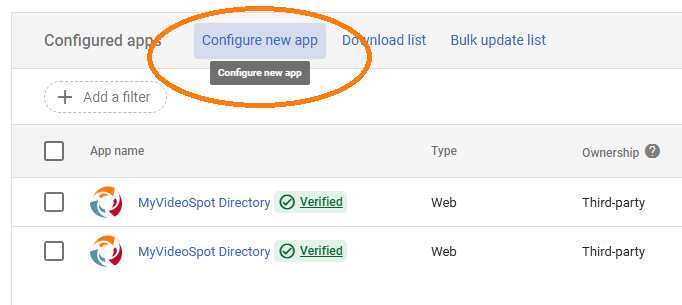
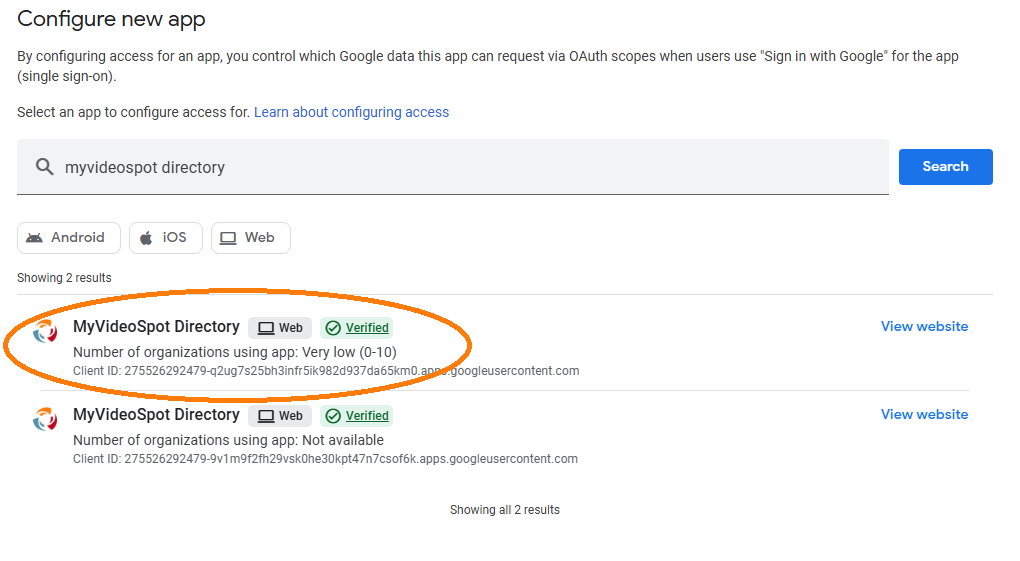
- Search for MyVideoSpot Directory and click Search.
- Click on the first option (you will need to complete these steps for both MyVideoSpot Directory listings).
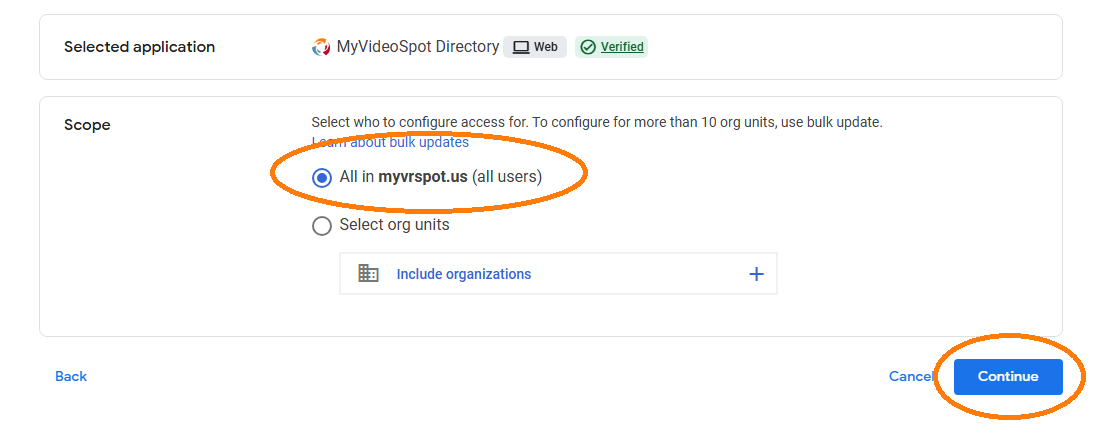
- Select the radio button for All and click Continue.
7. Select the radio button for Trusted and click Continue.
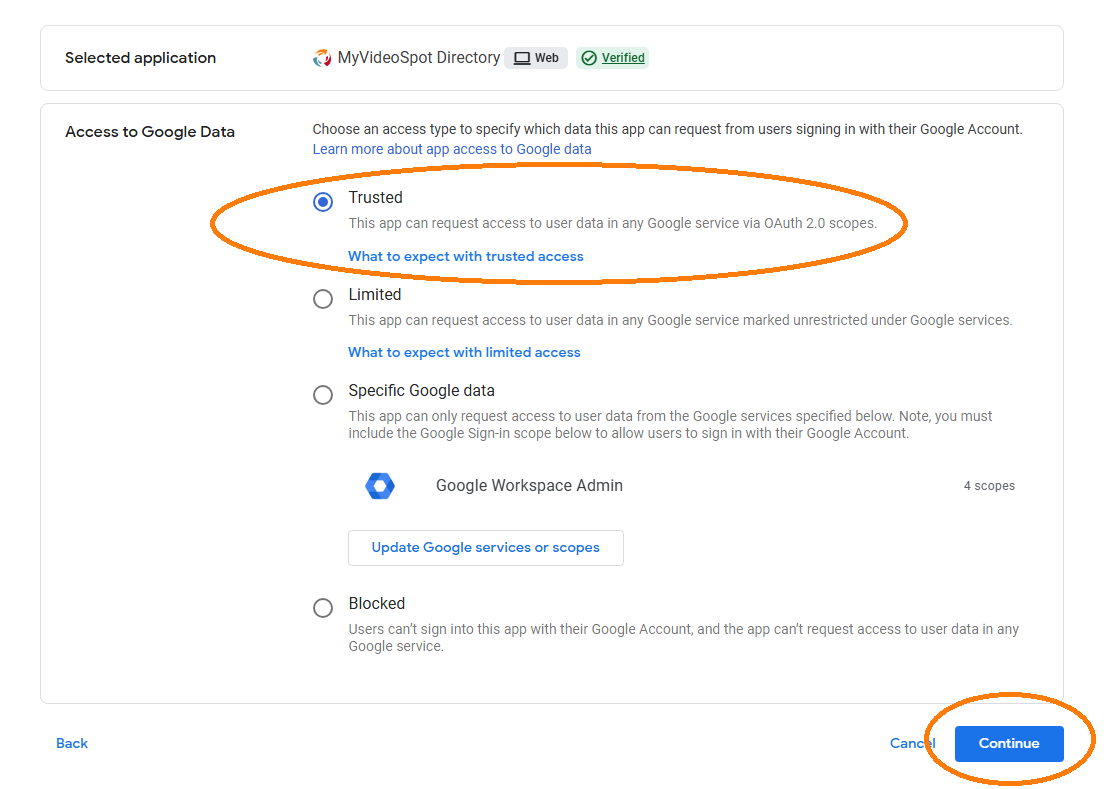
8. Confirm and click Finish.
9. Repeat Steps 2 through 8 for the second MyVideoSpot Directory listing.
Step 2
- Log into your District Admin account on MyVideoSpot. (Note: If you are a Sandbox user, login here instead: https://live.myvrspot.com/site/sandbox-login)
- Click your name in the bottom left and select Administrator Tools.
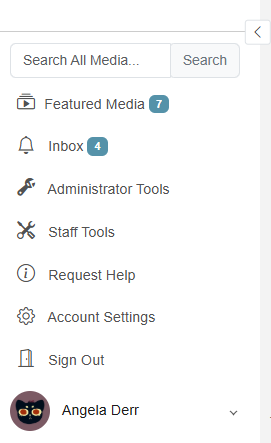
-
Under the User Administration section, select Setup Google Provisioning.
(Note: You must be a Google Super Admin to complete this process)
- Click the Open Google Authorization Page button.
- Select your Google Administrator account and allow MyVRSpot Directory to access your Google account.
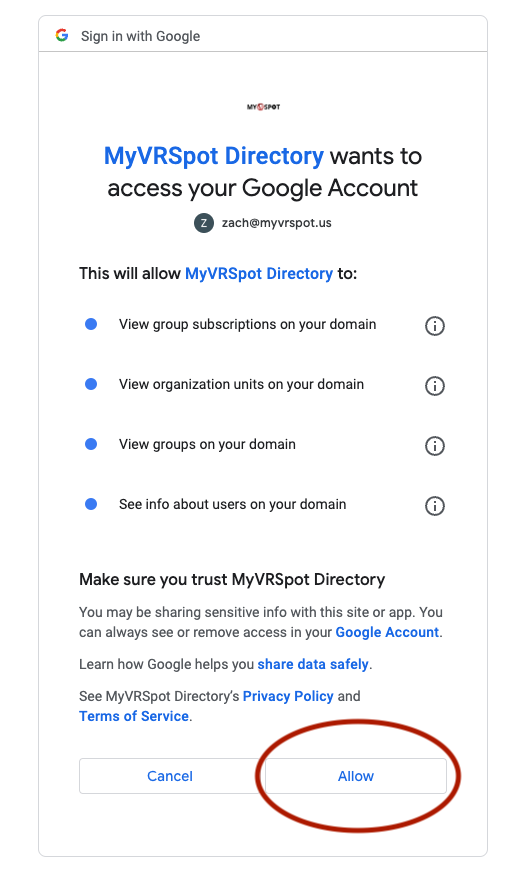
- If the token was created successfully, you will get a success message. To double check the connection, click on the View All Google Org Units button and you should see a list of all of the organizational units that MyVideoSpot is able to connect with for provisioning.

- Once this has been completed, you, or any District Administrator, can build your provisioning jobs by following the instructions in the next section.
Create Provisioning Jobs
- Log into your District Admin account on MyVideoSpot. (Note: If you are a Sandbox user, login here instead: https://live.myvrspot.com/site/sandbox-login)
- Click your name in the bottom left and select Administrator Tools and then click Google Provisioning found under the User Administration section.
- From here, you have two options:
- Provision using organizational units
- Provision using groups (you must have groups set up in your Google Admin console prior to this)
- Click the button that corresponds with your choice.
- Select the School, Corresponding Organization Path, Group (if applicable) and Usertype from the drop-down menus:
- School choice is based on where the users are located.
- Organization Path selects where will we pull those users from within your Google Organization.
- Usertype selects which access level those users will have within MyVideoSpot.
- Click Create to register your first provisioning job.
- Repeat this process for all the organizational units you want to provision accounts from.
- You can see your existing jobs by going to Administrator Tools > Google Provisioning.
- When you’re finished, either let MyVideoSpot Support know (support@myvideospot.com) or the MyVideoSpot contact you’ve been working with.