
MyVideoSpot in Canvas
Canvas users can add MyVideoSpot media into assignments, quizzes, pages, announcements, and discussions, and can embed Insights with grade passback — all through the MyVideoSpot integration.
Installing the Canvas App
Navigate to Administrator Tools > Apps and click the Setup button for Canvas to view installation instructions unique to your district.
Adding Media to an Assignment
- Navigate to the Assignments page from your course's side menu and click + Assignment.
-
In the editor, click the Apps icon (looks like a plug).
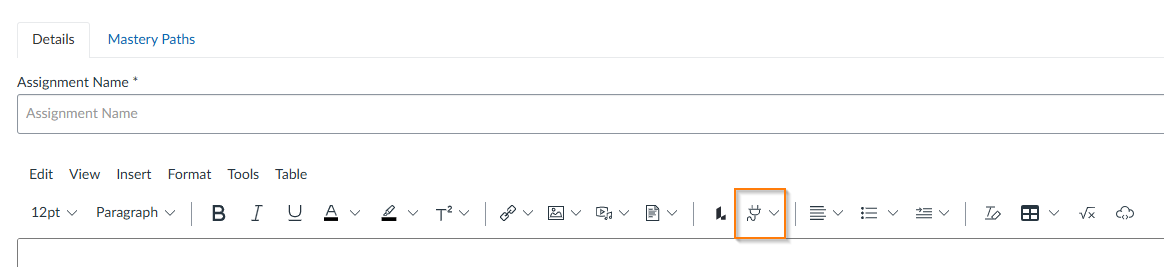
- Click View All and select MyVideoSpot.
- A popup containing your media, favorites, and team media will open. Find the item you'd like to use and click Select Item.
- You'll now see the item within the body of your assignment. From here, finish setting up your assignment as normal.
Info: Once you've selected MyVideoSpot for the first time from the View All popup, it will show up in the Apps dropdown above View All going forward.
Having trouble with the integration? Make sure your email address in Canvas and MyVideoSpot match or you’ll run into issues.
Adding an Insight as an Assignment
- Navigate to the Assignments page from your course's side menu and click + Assignment.
- Enter a title and optional description, then scroll to the Submission Type section.
-
Select External Tool from the dropdown and click Find.
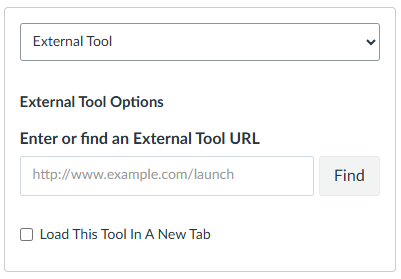
- Select Insights from the list in the popup.
- Click Select next to the Insight you want to use, then click Select again on the Configure External Tool popup.
- You're all set — Save or Publish your assignment.
Once published, your Insight will display within the assignment window. When someone completes it, the grade is automatically added to the Canvas gradebook. If the Insight includes an open-answer question, you'll need to grade that manually before the grade passes to Canvas.
Taking the Insight as a Student
- Navigate to the Assignments section in your Canvas course.
- Click the Insight you'd like to complete — it will launch within Canvas.
- After completing it, you'll see your grade, and optionally the correct answers to auto-graded questions if the Insight creator has allowed it.
- If the Insight was set as graded during assignment creation, you can view your grade from the Grades menu in Canvas.
Insights with open answer questions will need to be graded by the Insight creator before a score appears in the grades section.