
Announcements
Announcements let District Admins post org-wide messages as a dismissible banner shown to the recipients you choose, until the announcement expires.
Viewing Announcements
- Go to Administrator Tools > Announcements.
- Use the filters at the top of the table — Title, Send to, Recipients, Style, Status, Created By, District, and Visibility — to search existing announcements.
Creating an Announcement
- From the Announcements page, click New Announcement.
- Enter a Title and write your Message using the editor.
- If you'd like to attach an item to the announcement, turn on Attach Item to Announcement, then set:
- Type: Banner, Message, or Both
- Style: Primary, Secondary, Success, Danger, Warning, Info, Light, or Dark
-
Use the Live Preview panel on the right to see how the banner will appear to recipients as you build it.
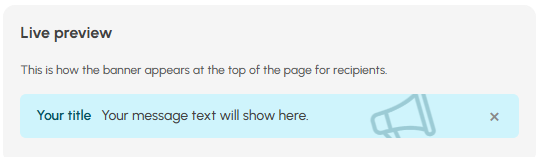
- Under Audience & Scope, use the Send to dropdown to choose where the announcement goes: a specific consortium, district, or school. The options available depend on your admin level — a state admin can target a consortium, district, or school; a consortium admin can target a district or school; a district admin can target a school.
- Check the boxes for which Recipient types should see the announcement: Consortium Administrators, District Administrators, School Administrators, Teachers, User Plus, or Students. Again, the options available depend on your admin level.
- Under Schedule, set a Start date and an End date — the announcement automatically expires and disappears after the end date.
- Keep Allow recipients to dismiss this banner toggled on if you want recipients to be able to dismiss the announcement permanently once seen. If toggled off, the banner stays visible to everyone until it expires or is deleted.
- Click Save as Draft to save your progress without publishing, or Publish to make the announcement live.
